6. Create the agent — and remove the Bing leak
Custom tools live on an agent, not on a bare model playground (the playground’s Add button is greyed out with the hint “some tools will require creating an agent”). So we create a real agent — and immediately find the thing controlled egress exists to remove.
In plain English
Section titled “In plain English”When you create an agent, Foundry “helpfully” gives it the ability to search the web. Sounds convenient. But that web search runs through Bing as a separate consumer service — and the portal itself warns the data “will flow outside the Azure compliance boundary.” For a sensitive workload that’s a leak baked into the defaults. So the very first thing we do to a new agent is take the web search away.
Create the agent
Section titled “Create the agent”-
Build → Agents → Create agent.
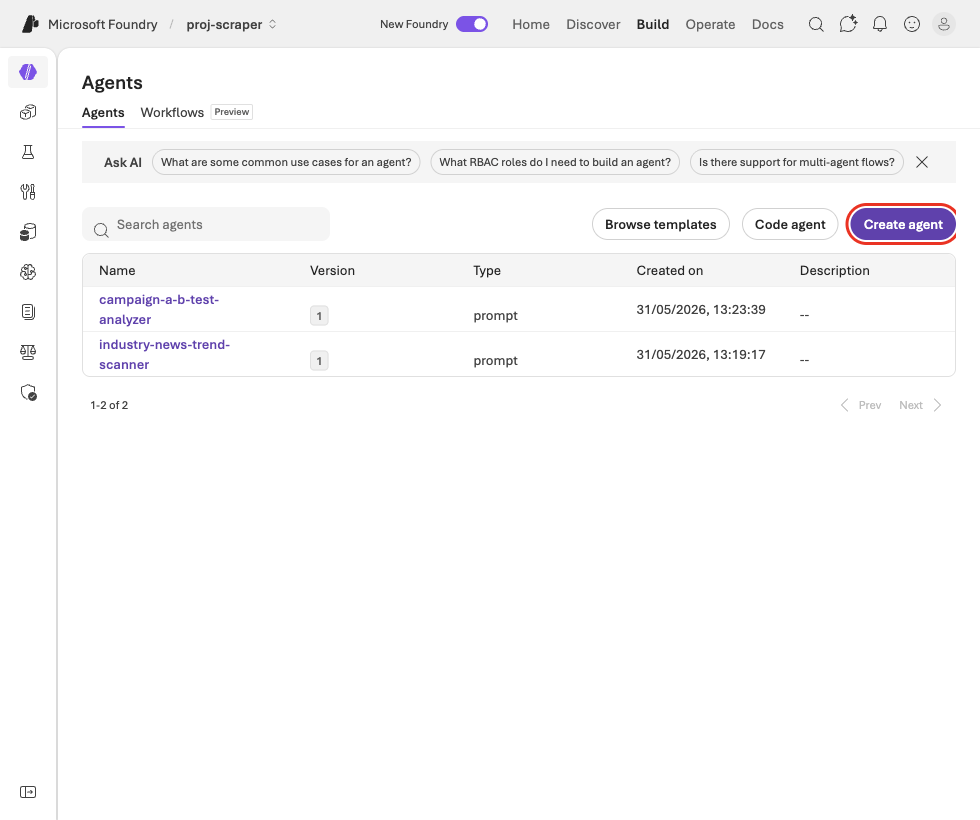
The Agents page — 'Create agent' boxed. -
Name it
controlled-egress-scraper→ Create and open playground.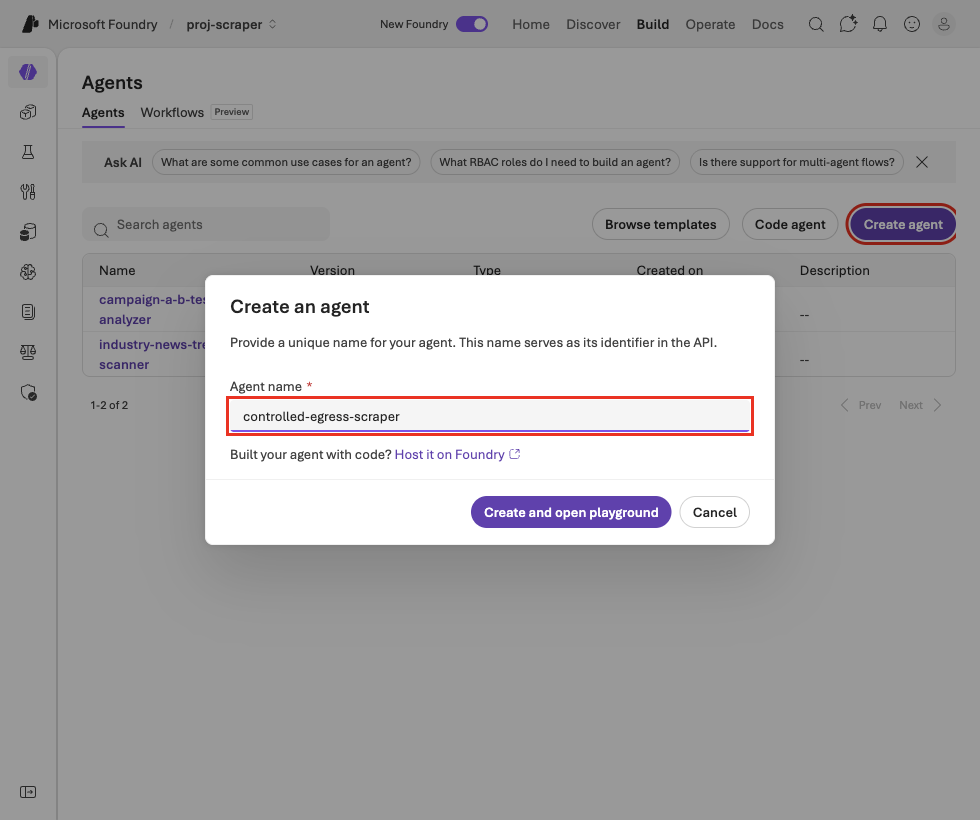
Naming the agent (boxed). -
The agent designer opens — Instructions, Tools, Knowledge, and a model.
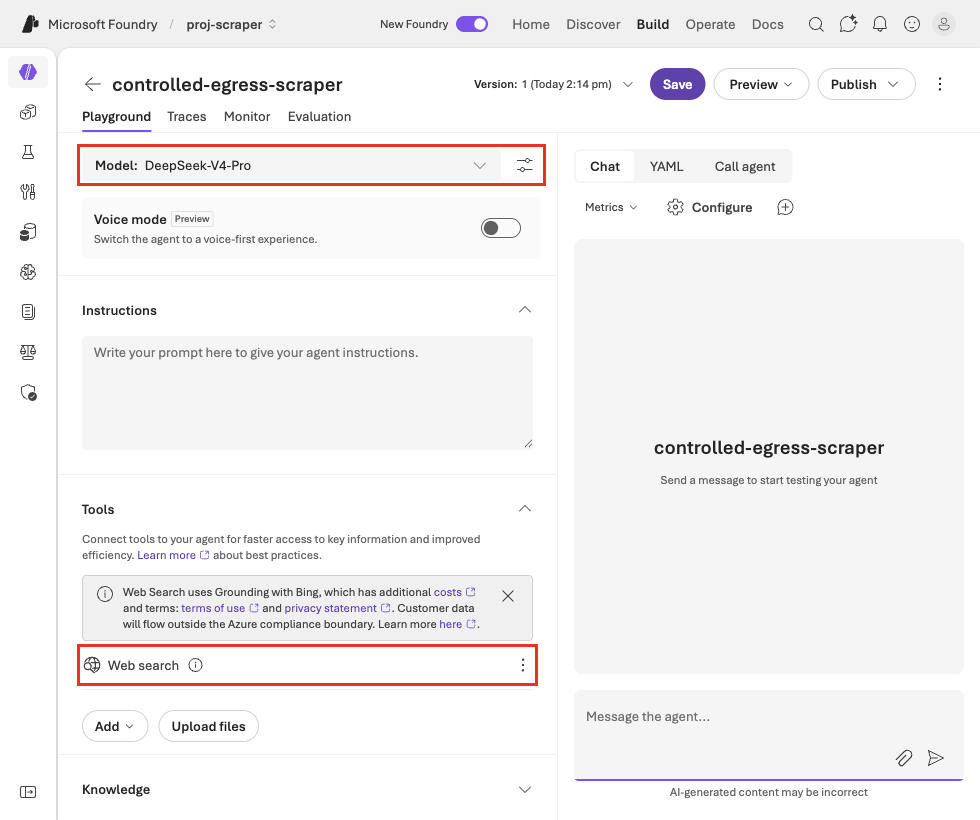
The fresh agent designer.
Find the leak the default ships with
Section titled “Find the leak the default ships with”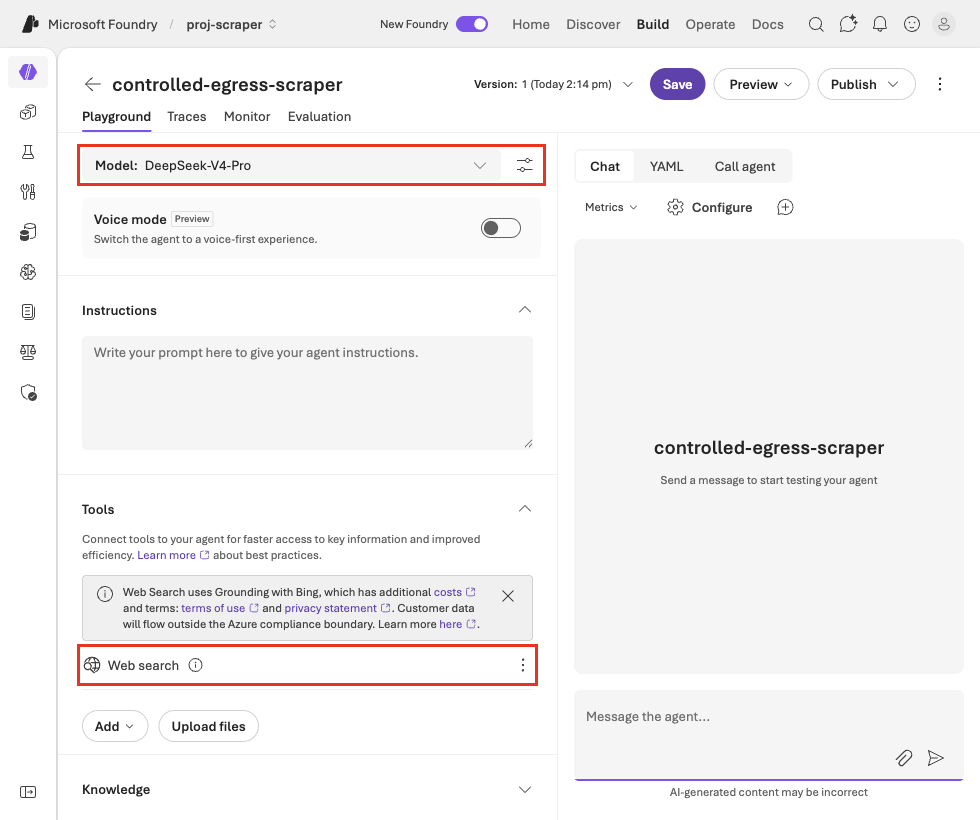
Remove the Bing web search
Section titled “Remove the Bing web search”-
In Tools, on the Web search row, open the ⋮ menu → Remove.
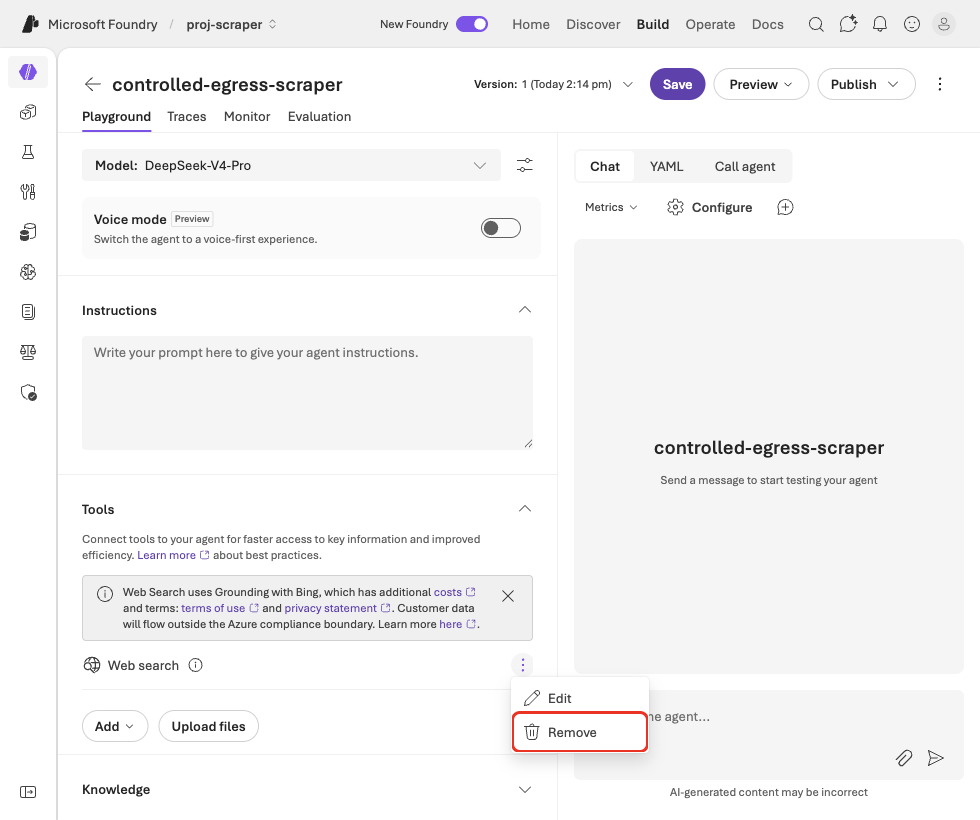
Remove the Web search tool ('Remove' boxed). -
The Tools list is now empty — the agent has no internet access at all. That’s the clean baseline we want before adding one narrow, allowed exit.
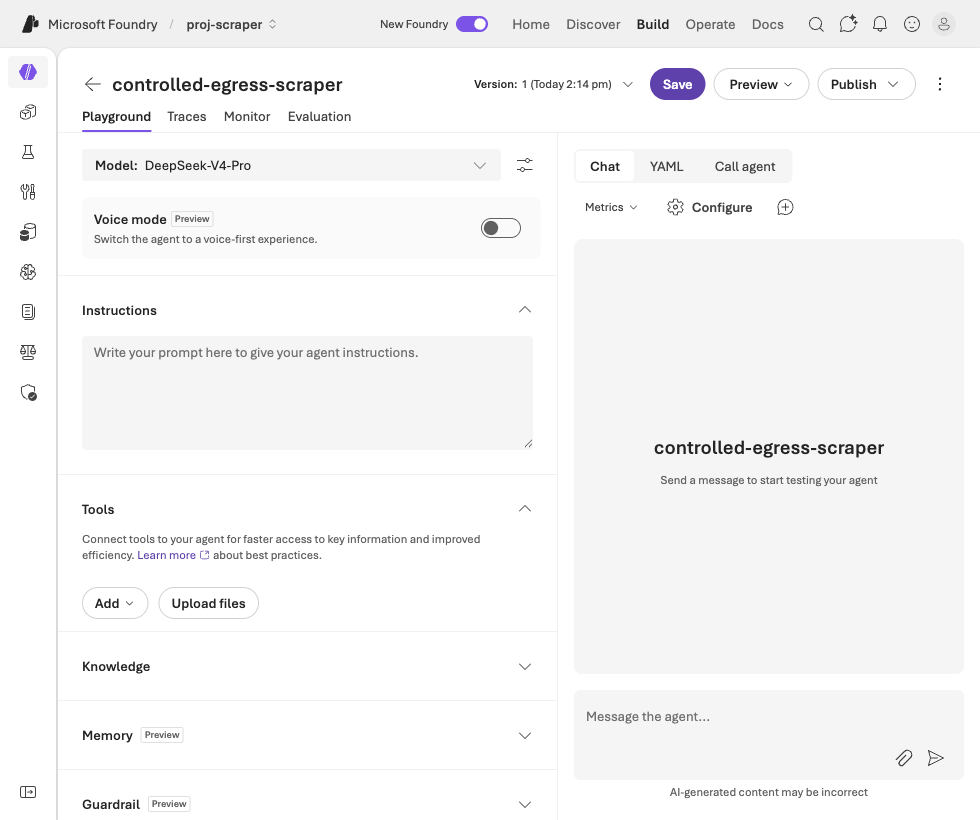
Tools empty — no egress at all. A clean default-deny baseline.